
Figma Bridge
FreeNot checkedLocal MCP server connecting AI clients to the Figma desktop app for inspecting and editing Figma documents via the Plugin API.

About
Local MCP server connecting AI clients to the Figma desktop app for inspecting and editing Figma documents via the Plugin API.
README
Figma Bridge MCP is a local Model Context Protocol (MCP) server that connects MCP-compatible AI clients to the Figma desktop app. It lets an AI assistant inspect the current Figma or FigJam document, export nodes, and make controlled changes through the Figma Plugin API.
Plugin Preview
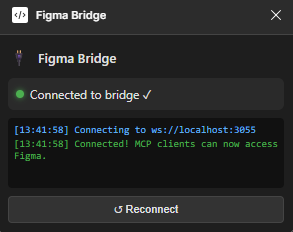
The plugin window shows the bridge connection status, recent connection events, and a manual reconnect button. Keep this window open while your MCP client is working with Figma.
Features
- Inspect the current page, selected layers, individual nodes, local styles, variables, and components.
- Export Figma nodes as PNG, SVG, or PDF straight to disk.
- Update text and solid fill colors.
- Create, move, resize, and delete nodes.
- Upload local images into Figma — the server reads the file, the plugin downscales it — without base64 passing through the conversation.
- Run advanced JavaScript through the Figma Plugin API, inline or from files on disk, with a bundled helper library and errors reported as
file:line. - Use node IDs copied from Figma URLs in either
1:23or1-23format. - Connect multiple MCP client processes through a shared local bridge server.
- Use the Windows Figma desktop app from AI agents running natively on Windows or inside WSL2.
- Work with any MCP client that supports stdio servers, including Codex, Claude Code, and VS Code MCP clients.
How It Works
┌──────────────────────────────┐
│ MCP client                   │
│ Codex, Claude Code, VS Code  │
└──────────────┬───────────────┘
               │ MCP over stdio
┌──────────────▼───────────────┐
│ server.js                    │
│ Node.js MCP/WebSocket bridge │
└──────────────┬───────────────┘
               │ ws://localhost:3055
┌──────────────▼───────────────┐
│ Figma Bridge plugin          │
│ ui.html ↔ code.js            │
└──────────────┬───────────────┘
               │ Figma Plugin API
┌──────────────▼───────────────┐
│ Open Figma or FigJam file    │
└──────────────────────────────┘
The first server.js process that acquires port 3055 becomes the primary bridge. If another MCP client starts another instance, that process automatically enters proxy mode and forwards its commands to the primary bridge. When multiple Figma plugins are connected, commands are sent to the most recently connected plugin.
Requirements
- Node.js and npm. The current Node.js LTS release is recommended.
- The Figma desktop app.
- An MCP client with stdio server support.
Install Node.js in the same environment where the AI client will launch the MCP server: install Windows Node.js for native Windows clients or Linux Node.js inside WSL for WSL clients. The server itself is platform-independent. start.bat is included only as an optional Windows helper.
Installation
Clone this repository and install its dependency:
git clone https://github.com/Halil-KAPLAN/figma-bridge-mcp.git
cd figma-bridge-mcp
npm install
You can also download the repository as a ZIP file, extract it, open a terminal in the extracted directory, and run npm install.
Windows and WSL2 Support
Figma Bridge MCP supports both Windows-native development and WSL2 development. Figma always runs as the Windows desktop application; the MCP server runs in the same environment as the AI agent that launches it.
| Development environment | Where Node.js and this repository run | Path used in MCP configuration | Figma application |
|---|---|---|---|
| Native Windows | Windows | C:\path\to\figma-bridge-mcp\server.js |
Windows Figma Desktop |
| WSL2 terminal | WSL2 Linux | /home/user/figma-bridge-mcp/server.js |
Windows Figma Desktop |
| VS Code opened normally on Windows | Windows, unless the agent is explicitly configured to use WSL | Windows path | Windows Figma Desktop |
| VS Code Remote - WSL | WSL2 Linux | WSL Linux path | Windows Figma Desktop |
How the WSL2 connection works
When server.js runs inside WSL2, it opens the WebSocket bridge on port 3055. Windows forwards WSL networking applications to localhost, so the Windows Figma plugin can still connect to:
ws://localhost:3055
The complete WSL flow is:
AI agent in WSL
    → starts server.js in WSL over stdio
    → WSL WebSocket server listens on port 3055
    → Windows exposes the WSL service through localhost:3055
    → Figma Desktop plugin connects from Windows
    → the agent can inspect and edit the open Figma document
Microsoft documents Windows-to-WSL access through localhost in Accessing network applications with WSL.
Native Windows setup
Use a repository stored on the Windows file system and install dependencies with Windows Node.js:
git clone https://github.com/Halil-KAPLAN/figma-bridge-mcp.git
cd figma-bridge-mcp
npm install
The MCP command must use the Windows copy of Node.js and a Windows path to server.js.
WSL2 setup
For WSL development, keep the repository in the Linux file system and install dependencies inside WSL:
mkdir -p ~/code
cd ~/code
git clone https://github.com/Halil-KAPLAN/figma-bridge-mcp.git
cd figma-bridge-mcp
npm install
Open the WSL project in VS Code with:
code .
Confirm that VS Code displays WSL: <distribution> in the remote status indicator and that its integrated terminal uses paths such as /home/user/.... See the VS Code WSL tutorial for the Remote - WSL workflow.
While the bridge is running in WSL, you can test access from Windows with:
Test-NetConnection localhost -Port 3055
TcpTestSucceeded should be True.
Keep the agent and MCP server in the same environment
The node command and the server.js path are resolved by the environment where the AI agent is running:
- A Windows-native agent needs Windows Node.js and a Windows path.
- An agent running in WSL needs Node.js installed in WSL and a Linux path.
- A VS Code Remote - WSL window should configure the MCP server from its WSL integrated terminal.
- Do not use a
C:\...path in a WSL MCP configuration or a/home/...path in a native Windows MCP configuration.
For the most predictable behavior, use one canonical installation per environment and configure all agents in that environment to launch the same server.js file. Multiple MCP processes in the same environment are supported: the first becomes the primary bridge and later processes automatically proxy through it.
Use Figma Bridge MCP in Figma
Figma Bridge MCP includes a local Figma development plugin. It does not need to be installed from the Figma Community. The plugin runs inside the open Figma or FigJam document and relays MCP commands between the local bridge server and the Figma Plugin API.
Install the plugin once
Development plugins must be imported with the Figma desktop app:
- Open the Figma desktop app on macOS or Windows.
- Create or open any Figma Design or FigJam file.
- Open the Figma menu in the upper-left corner.
- Select Plugins → Development → Import new plugin from manifest....
- Browse to this repository and select plugin/manifest.json.
- Figma adds Figma Bridge to the Development section of the Plugins menu.
The manifest only needs to be imported once on each computer. See Figma's development plugin guide for more information about importing local plugins.
Run the plugin for each session
- Open the Figma Design or FigJam file that you want the AI agent to inspect or edit.
- Start or reload your configured MCP client. It will normally launch
server.jsautomatically. You can runnpm startmanually for diagnostics. - In Figma, select Plugins → Development → Figma Bridge.
- Keep the plugin window open while the AI agent is using Figma.
- Wait until the plugin displays Connected to bridge ✓.
The plugin connects to ws://localhost:3055. If the MCP server is not running yet, the plugin remains on Connecting... and retries automatically. You can therefore start the Figma plugin or the MCP client first.
The open document is the active target. If you switch documents, run the plugin in the document that you want the agent to use. Commands such as figma_get_selection operate on the layers currently selected in that document.
Let an AI agent use Figma through MCP
After the plugin shows Connected to bridge ✓, any configured AI agent that supports stdio MCP servers can discover and call the Figma Bridge MCP tools. The agent does not connect directly to your Figma account and does not require a Figma access token. Requests follow this path:
AI agent → MCP tool → server.js → Figma plugin → Figma document
The plugin executes the requested operation through the Figma Plugin API and returns the result to the agent over the same connection. The agent can then inspect the result, continue with another tool, or explain the changes it made.
Add Figma Bridge MCP to an AI Application
Figma Bridge MCP is a local stdio MCP server. The AI application launches it with this command:
node /absolute/path/to/figma-bridge-mcp/server.js
The path must be valid in the environment where the AI application runs. You normally do not need to run npm start separately because the MCP client starts and manages server.js itself.
Codex CLI and Codex IDE extension
Codex running on Windows
Run this command in PowerShell or the VS Code Windows terminal:
codex mcp add figma-bridge-mcp -- node C:\path\to\figma-bridge-mcp\server.js
Codex running in WSL2
Run this command in the WSL terminal or the VS Code Remote - WSL integrated terminal:
codex mcp add figma-bridge-mcp -- node /home/user/code/figma-bridge-mcp/server.js
Verify the configuration:
codex mcp list
Inside Codex, use /mcp to inspect the connected server and its tools. Codex CLI and the Codex IDE extension share config.toml when they run on the same host, so adding the server from the terminal also makes it available to the extension in that environment.
The equivalent Codex configuration is:
[mcp_servers.figma-bridge-mcp]
command = "node"
args = ["/absolute/path/to/figma-bridge-mcp/server.js"]
On Windows, the Codex IDE extension can also run Codex inside WSL by enabling this VS Code setting:
"chatgpt.runCodexInWindowsSubsystemForLinux": true
When that setting is enabled, install Node.js and Figma Bridge MCP inside WSL and use the WSL path in the Codex MCP configuration. In a VS Code Remote - WSL window, Codex already runs with the WSL project environment.
See the official Codex MCP documentation for MCP configuration and the Codex WSL documentation for the WSL workflow.
Claude Code CLI and VS Code extension
Claude Code MCP servers are most reliably added from a terminal. The VS Code extension can then manage and use the configured server.
Claude Code running on Windows
Run this command in PowerShell or the VS Code Windows terminal:
claude mcp add --transport stdio --scope user figma-bridge-mcp -- node C:\path\to\figma-bridge-mcp\server.js
Claude Code running in WSL2
Run this command in the WSL terminal or the VS Code Remote - WSL integrated terminal:
claude mcp add --transport stdio --scope user figma-bridge-mcp -- node /home/user/code/figma-bridge-mcp/server.js
Verify the configuration:
claude mcp list
In Claude Code CLI or the VS Code chat panel, use /mcp to view the connection and available tools. When VS Code is connected through Remote - WSL, run claude mcp add from the WSL integrated terminal so the command and Linux path are stored in the WSL Claude Code configuration.
See the official Claude Code MCP documentation and Claude Code VS Code documentation.
VS Code .vscode/mcp.json
Some VS Code MCP clients read workspace servers from .vscode/mcp.json. Use the configuration that matches the extension host.
Windows-native VS Code:
{
  "servers": {
    "figma-bridge-mcp": {
      "type": "stdio",
      "command": "node",
      "args": ["C:\\path\\to\\figma-bridge-mcp\\server.js"]
    }
  }
}
VS Code Remote - WSL:
{
  "servers": {
    "figma-bridge-mcp": {
      "type": "stdio",
      "command": "node",
      "args": ["/home/user/code/figma-bridge-mcp/server.js"]
    }
  }
}
Other terminal and desktop AI clients
Any AI client that supports local stdio MCP servers can use Figma Bridge MCP. Look for an MCP Servers, Tools, or Integrations setting and add a server with:
- Name:
figma-bridge-mcp - Transport:
stdio - Command:
node - Arguments: the absolute path to
server.js
A common JSON format is:
{
  "mcpServers": {
    "figma-bridge-mcp": {
      "type": "stdio",
      "command": "node",
      "args": ["/absolute/path/to/figma-bridge-mcp/server.js"]
    }
  }
}
The exact configuration filename and the top-level key (mcpServers or servers) depend on the client. Terminal applications follow the same environment rule: use a Windows path when the application runs in Windows and a Linux path when it runs in WSL.
Use It with an AI Agent
After installing the Figma plugin and configuring your MCP client:
- Open the target document in the Figma desktop app.
- Run Plugins → Development → Figma Bridge and keep its window open.
- Start or reload the AI agent so it launches the MCP server and discovers its tools.
- Ask the agent to check the connection. It should call
figma_statusand report that the plugin is connected. - Ask the agent to inspect or modify the open document using natural language.
For example:
Check whether the Figma plugin is connected.
Show the structure of the current Figma page.
Get the details of node 2057:6604.
Export node 2057:6604 as a PNG at 2x scale.
Change the selected heading to "Welcome back".
List all local components on the current page.
When a node ID comes from a Figma URL such as node-id=2057-6604, you can pass either 2057-6604 or 2057:6604 to the bridge.
The AI agent decides which MCP tools to call based on your request. You can also explicitly name a tool when you need a specific operation, such as figma_get_selection, figma_export_node, or figma_set_text.
Available MCP Tools
Connection and inspection
| Tool | Inputs | Description |
|---|---|---|
figma_status |
None | Reports whether a Figma plugin is connected |
figma_get_page |
None | Returns the current page and its direct children |
figma_get_node |
nodeId |
Returns a node's properties and direct children |
figma_get_selection |
None | Returns detailed information about the currently selected nodes |
figma_get_styles |
None | Lists local paint, text, and effect styles |
figma_get_variables |
None | Lists local variable collections, modes, and variables |
figma_get_components |
None | Lists components on the current page |
Export
| Tool | Inputs | Description |
|---|---|---|
figma_export_node |
nodeId, optional format, scale, outputPath |
Exports a node as PNG, SVG, or PDF, writes the file, and returns its path |
The default export format is PNG and the default scale is 1. scale applies to
PNG and PDF only; SVG export takes no scale constraint and ignores it.
The export is written to disk rather than returned as inline base64 — a modest PNG is hundreds of kilobytes of it, which is expensive for an AI client to carry in its context and unusable as an image. The tool returns the file path instead.
outputPath may be a full file path or a directory to write into. Without it the
file lands in ./figma-exports/ relative to the working directory of the MCP
client process; set FIGMA_BRIDGE_EXPORT_DIR to change that default. Generated
file names combine the layer name with the node ID, for example
hero-banner-5005-2330.svg.
SVG exports up to 16 KB are also returned inline as source, so an icon can be used without a second read. Larger SVGs are referenced by path only.
Editing
| Tool | Inputs | Description |
|---|---|---|
figma_set_text |
nodeId, text |
Replaces the content of a text node |
figma_set_fill |
nodeId, hex |
Replaces a node's fills with one solid hex color |
figma_create_frame |
name, width, height, optional x, optional y |
Creates a frame on the current page |
figma_create_text |
text, optional x, y, fontSize, fontFamily, fontStyle, color, parentId |
Creates a text node (Inter Regular by default) on the current page or in a parent node |
figma_delete_node |
nodeId |
Deletes a node |
figma_move_node |
nodeId, x, y |
Changes a node's position |
figma_resize_node |
nodeId, width, height |
Changes a node's dimensions |
Images
| Tool | Inputs | Description |
|---|---|---|
figma_upload_image |
path or paths, optional nodeId, parentId, name, maxSize, width, x, y, scaleMode, timeoutMs |
Puts local image files into the document and returns their hashes |
The MCP server reads the files itself, so a photo never travels through the AI
conversation as base64 (an inline base64 photo costs on the order of 100K tokens).
Paths resolve against the MCP client's working directory, like outputPath for
exports.
- Without
nodeId, each image becomes a rectangle named after the file, at its natural size (orwidthwide), on the current page or insideparentId; severalpathsare laid out left to right. - With
nodeId, the image replaces that node's fills. - The result lists each image's
hash, naturalwidth/heightandnodeId. Use the hash in fills ({ type: 'IMAGE', scaleMode: 'FILL', imageHash }) fromfigma_run_js. Keep the uploaded node: Figma drops images no node references when the file is saved. - PNG, JPEG, GIF, WebP, AVIF and BMP are accepted. The plugin UI decodes them on a
canvas, downscales anything larger than
maxSize(and always to Figma's 4096px limit) and re-encodes formats Figma cannot store. TIFF and HEIC must be converted first.
figma.createImageAsync('http://localhost:…') and fetch from the plugin do
not work for local files — the request never leaves Figma. Use this tool instead.
Advanced
| Tool | Inputs | Description |
|---|---|---|
figma_run_js |
code, optional timeoutMs |
Runs JavaScript with access to the figma Plugin API object |
figma_run_script |
files, optional args, timeoutMs |
Runs JavaScript files from disk as one snippet; "@helpers" adds the bundled helper library |
figma_run_js is intended for operations not covered by the dedicated tools. The supplied code runs inside the Figma plugin sandbox and may modify the open document.
The snippet is wrapped in an async function before it runs, so await and return both work at the top level of the code you pass:
const node = figma.getNodeById("1:2");
await node.exportAsync({ format: "SVG" });
return node.name;
Both run tools share these behaviours:
- Errors carry a line number. A failure is reported as
TypeError: not a function (snippet line 12:4)forfigma_run_js, and as(…/build/hero.js:12:4)forfigma_run_script. - Return values are made cloneable.
figma.mixed(a Symbol) becomes"mixed", scene nodes become{ id, name, type, x, y, width, height }, byte arrays become a length, and functions are dropped. Previously a single Symbol failed the whole call withCannot unwrap symbol. timeoutMsraises the default 30-second limit (up to 10 minutes) for long builds.
Building from files with figma_run_script
Long scripts and reusable helpers belong on disk, not in the tool call. The files
are concatenated in order and run as one snippet, so a helper file defines
functions the next file uses. args is exposed as ARGS:
{ "files": ["@helpers", "design/lib.js", "design/hero.js"], "args": { "page": "Landing" } }
"@helpers" resolves to snippets/helpers.js, a small
library of Plugin API builders:
| Helper | Purpose |
|---|---|
loadFonts('Inter Regular', …) |
Loads fonts; text() refuses an unloaded font with a clear message |
hex, solid, gradient('down'│'right'│'diagonal', stops), radial, shadow, blur |
Paints and effects |
imageFill(hashOrLayerName, scaleMode) |
Image paint from an upload hash or the name of an uploaded layer |
frame, rect, ellipse, text |
Create a node in a parent with { x, y, w, h, fill, radius, stroke, effects, … } |
styleRange(textNode, part, { font, color, size }) |
Restyle part of a text |
autoLayout(frame, { dir, gap, padding, align }) |
Turn a frame into auto layout |
page(name), replaceChild(parent, name) |
Find/create and switch to a page; remove a layer before rebuilding it |
// design/hero.js
await loadFonts("Inter Regular", "Inter Bold");
const pg = await page(ARGS.page);
replaceChild(pg, "Hero");
const hero = frame(pg, { name: "Hero", w: 1440, h: 800, fills: [imageFill("hero-photo"), gradient("down", [["#000000", 0, 0], ["#000000", 0.7, 1]])] });
const title = text(hero, "Build faster", { font: "Inter Bold", size: 96, color: "#ffffff", x: 80, y: 520 });
styleRange(title, "faster", { color: "#f5c542" });
return hero;
Making each section script idempotent (replaceChild first) lets you edit a file
and rerun only that section.
Running the Server Manually
Manual startup is useful for diagnostics, but is not required when your MCP client is configured to launch the server.
npm start
On Windows, you can also double-click start.bat.
Expected log output from a primary server:
[figma-bridge-mcp] Starting Figma Bridge MCP Server...
[figma-bridge-mcp] PRIMARY mode — listening at ws://localhost:3055
[figma-bridge-mcp] MCP stdio ready
If another Figma Bridge process already owns the port, the new process enters proxy mode. This is expected:
[figma-bridge-mcp] Port is in use; switching to proxy mode...
[figma-bridge-mcp] Connected to the primary server
Project Structure
figma-bridge-mcp/
├── plugin/
│   ├── code.js          # Commands executed in the Figma plugin sandbox
│   ├── ui.html          # Plugin UI and WebSocket client
│   └── manifest.json    # Figma development plugin manifest
├── snippets/
│   └── helpers.js       # Helper library loaded by figma_run_script via "@helpers"
├── server.js            # MCP stdio server and WebSocket bridge
├── start.bat            # Optional Windows launcher
├── package.json         # Node.js package metadata and scripts
└── README.md
The only runtime npm dependency is ws, which provides the WebSocket server and client implementation.
Troubleshooting
No Figma plugin connected
- Use the Figma desktop app, not the browser version.
- Open the Figma or FigJam file you want to work with.
- Run Plugins → Development → Figma Bridge.
- Keep the plugin window open.
- Wait a few seconds for the plugin's automatic reconnect attempt.
- Confirm that the plugin displays Connected to bridge ✓.
The plugin stays on Connecting...
- Confirm that the MCP client has started
server.js, or runnpm starttemporarily for diagnostics. - Confirm that port
3055is not blocked by a firewall or security tool. - Check whether an unrelated application is already using port
3055. - Reload the plugin after the bridge server starts.
Windows Figma cannot reach the bridge running in WSL2
Confirm that the server is listening inside WSL:
ss -ltnp | grep 3055
Then test the forwarded port from Windows PowerShell:
Test-NetConnection localhost -Port 3055
If TcpTestSucceeded is False:
- Confirm that you are using WSL2 with
wsl --list --verbosein PowerShell. - Update WSL with
wsl --update, then restart it withwsl --shutdown. - Restart the MCP client and rerun the Figma plugin.
- Check whether a VPN, firewall, endpoint security tool, or unrelated process is blocking port
3055. - Confirm that Node.js and
npm installwere run inside WSL rather than only on Windows.
Do not replace the plugin URL with a WSL virtual-machine IP. Windows-to-WSL localhost forwarding is the intended connection path and avoids depending on an IP address that can change after WSL restarts.
The MCP server is not detected
Confirm that Node.js is available:
node --versionConfirm that dependencies are installed:
npm installUse an absolute path to
server.js.Escape Windows backslashes correctly in JSON.
Restart or reload the MCP client after changing its configuration.
Check the MCP client's server logs for Node.js or path errors.
Port is in use; switching to proxy mode...
This message is normal when another Figma Bridge instance is already running. If the proxy cannot connect, stop the unrelated process using port 3055 or change the port consistently in server.js, plugin/ui.html, and plugin/manifest.json.
The first bridge to start owns the port, and it is often one left behind by an earlier session. Requests from every other client pass through it, and it decides the timeout, so an old primary keeps old behaviour after you update. figma_status reports the version and pid of the primary and warns when it is older than the client calling it. Stop that process (ss -ltnp | grep 3055 shows it); a proxy whose primary exits takes the port over, or reconnects to whichever proxy did, within about a second, and the plugin reconnects on its own — no MCP client restart needed.
Each bridge exits as soon as its MCP client closes stdin (a closed window or a crashed session), so finished sessions do not leave servers — or a stale primary — behind. Bridges older than 1.1.0 did not, which is how several of them could pile up on one port.
A command times out
- Confirm that the plugin is still open and connected.
- Confirm that the target document is still open in Figma.
- Check that the node ID exists in the current document.
- Retry the request after reconnecting the plugin. Bridge requests time out after 30 seconds by default; pass
timeoutMs(up to 600000) tofigma_run_js,figma_run_scriptorfigma_upload_imagefor long operations.
Current Limitations
- The bridge is designed for local use and uses the fixed WebSocket port
3055. - The Figma development plugin must remain open during a session.
- Commands target the most recently connected plugin when multiple plugin windows are open.
figma_get_pagereturns the page's direct children rather than recursively expanding the entire document tree. Usefigma_get_nodefor more detail.- Exports are written to disk by the MCP server process that received the call, so the file lands next to the client that asked for it rather than on the primary bridge.
- There is no authentication layer between the local WebSocket server and plugin.
Security
Figma Bridge MCP is intended for local development. Do not expose port 3055 to untrusted networks. Only connect MCP clients you trust, and review commands before allowing them to modify important design files.
The figma_run_js tool can execute arbitrary JavaScript in the Figma plugin sandbox. It is powerful enough to inspect or modify the open document and should only be used with trusted prompts and trusted MCP clients.
Development
Install dependencies and start the server:
npm install
npm start
Changes to server.js require restarting the MCP server process. Changes to files under plugin/ require reloading or rerunning the development plugin in Figma.
License
This repository does not currently include a license. Add a LICENSE file before distributing or accepting third-party contributions.
Installing Figma Bridge
This server has no published package — it is built from source. Open the repository and follow its README.
▸ github.com/Halil-KAPLAN/figma-bridge-mcpFAQ
Is Figma Bridge MCP free?
Yes, Figma Bridge MCP is free — one-click install via Unyly at no cost.
Does Figma Bridge need an API key?
No, Figma Bridge runs without API keys or environment variables.
Is Figma Bridge hosted or self-hosted?
Self-hosted: the server runs locally on your machine via the install command above.
How do I install Figma Bridge in Claude Desktop, Claude Code or Cursor?
Open Figma Bridge on unyly.org, pick your client tab (Claude Desktop, Claude Code, Cursor) and press Install — the config is generated automatically, no JSON editing.
Related MCPs
LibreOffice Tools
Enables AI agents to read, write, and edit Office documents via LibreOffice with token-efficient design. Supports multiple formats including DOCX, XLSX, PPTX, a
 by passerbyflutter
Figma
Extract design specs and assets
 by Figma
dannote/figma-use
Figma control: create shapes, text and components, and set styles, auto-layout, variables and exports.
 by dannote
Logo.dev
Search and retrieve company logos by brand or domain. Customize size, format, and theme to match your design needs. Accelerate design, prototyping, and content
 by NOVA-3951
Design Inspiration Server
Searches top design platforms like Dribbble and Behance to provide UI inspiration, color palettes, and layout patterns via the Serper API. It allows users to re
 by YonasValentin
PIX4Dmatic
Enables GUI automation for controlling PIX4Dmatic on Windows through MCP. Supports launching, focusing, capturing screenshots, sending hotkeys, clicking UI elem
 by jangjo123
mcp-dockmaster
An Open-Sourced UI to install and manage MCP servers for Windows, Linux and macOS.
ariekogan/ateam-mcp
Build, validate and deploy multi-agent AI solutions on the ADAS platform: design skills with tools and manage the solution lifecycle.
 by ariekogan
thinkchainai/mcpbundles
Create custom tool bundles, connect providers with OAuth or API keys, and use one MCP server across many integrations, with a UI for bundles and credentials.
 by thinkchainai
jau123/MeiGen-AI-Design-MCP
Image generation and editing with a curated prompt library, prompt enhancement and routing across local ComfyUI, MeiGen Cloud and OpenAI-compatible APIs.
 by jau123
Compare Figma Bridge with
Not sure what to pick?
Find your stack in 60 seconds
Author?
Embed badge for your README
Browse similar
All design MCPs