
Microsoft Enterprise
FreeNot checkedQuery Microsoft Entra identity data using natural language

About
Query Microsoft Entra identity data using natural language
README
Overview
Built on the open Model Context Protocol, the public preview of Microsoft MCP Server for Enterprise lets AI agents access Microsoft Entra data by converting natural language queries into Microsoft Graph API calls. Developers and IT administrators use it to query Microsoft Entra data from their AI-powered workflows.
Full Documentation: Overview of Microsoft MCP Server for Enterprise
MCP Server Provisioning (execute once per tenant)
To set up the MCP Server for your tenant:
Provision the MCP Server. In Graph Explorer, send:
POST https://graph.microsoft.com/v1.0/servicePrincipalsBody: { "appId": "e8c77dc2-69b3-43f4-bc51-3213c9d915b4" }Register a new app, representing the MCP Client.
Set the appropriate Redirect URI (also called Reply URL) depending on the client (see table below).Redirect URI type matters in Microsoft Entra. If you add the URI under Web, Entra treats the app as a confidential client. Use that for apps that run on a server and can protect credentials (like Copilot Studio). At sign-in, Entra expects that app to authenticate with a
client_secretor a certificate-basedclient_assertion.
If you add the URI under Mobile and desktop applications or another public-client platform, Entra treats the app as a public client. Use that for desktop, CLI, or device apps that cannot keep a secret (like ChatGPT or Claude). These apps usually use the authorization code flow with PKCE instead of a client secret.Associate the MCP permissions (
MCP.<Microsoft_Graph_Scope>) between the MCP Server and the MCP Client
Create a custom VS Code or GitHub Copilot CLI client with PowerShell
After provisioning the MCP Server in step 1, use Microsoft.Entra.Beta 1.3.0 or later and an appropriate administrator role to create a public client and grant the scopes you need. This example grants user read access. Set $redirectUri to http://localhost for VS Code or http://127.0.0.1:51001 for GitHub Copilot CLI:
Connect-Entra -Scopes 'Application.ReadWrite.All', 'DelegatedPermissionGrant.ReadWrite.All' -ErrorAction Stop
$redirectUri = 'http://localhost'
$app = New-EntraBetaApplication -DisplayName 'Enterprise MCP Client' `
    -SignInAudience 'AzureADMyOrg' `
    -PublicClient @{ RedirectUris = @($redirectUri) } -ErrorAction Stop
$app.AppId
Grant-EntraBetaMCPServerPermission -ApplicationId $app.AppId -Scopes 'MCP.User.Read.All' -ErrorAction Stop
Use the returned app ID in the VS Code or GitHub Copilot CLI custom client configuration. The grant cmdlet provisions the client service principal if needed.
The PowerShell setup uses Application.ReadWrite.All, DelegatedPermissionGrant.ReadWrite.All, and an appropriate Entra administrator role. The MCP Client doesn't need these setup permissions at runtime: you can revoke setup-only grants and release setup-only roles after provisioning. Managing consent later requires administrator authorization again.
Info Table
| Property | Value | Notes |
|---|---|---|
| MCP Endpoint | https://mcp.svc.cloud.microsoft/enterprise |
Configure in your agent or mcp.json |
| MCP Server App Id | e8c77dc2-69b3-43f4-bc51-3213c9d915b4 |
Used for provisioning and telemetry |
| MCP Client App Id | <The one you registered in your tenant> | Required to configure your agent |
| App Redirect URI (Reply URL) | VS Code (custom client): http://localhostGitHub Copilot CLI (custom client): http://127.0.0.1:51001Claude Desktop: https://claude.ai/api/mcp/auth_callbackChatGPT: https://chatgpt.com/connector/oauth/<random_chars>Refer to ChatGPT config for the random charsMicrosoft Foundry: https://<random_chars>.<region>.azurecontainerapps.io/rest/oauth2-credential/callbackRefer to Foundry config for random chars |
Required on your app registration |
| Token URL | https://login.microsoftonline.com/organizations/oauth2/v2.0/token |
Required in some agents config |
| Token endpoint auth method | client_secret_post |
Required in some agents config |
| Auth URL | https://login.microsoftonline.com/organizations/oauth2/v2.0/authorize |
Required in some agents config |
| Refresh URL | https://login.microsoftonline.com/organizations/oauth2/v2.0/token |
Required in some agents config |
| Scopes | api://e8c77dc2-69b3-43f4-bc51-3213c9d915b4/.default |
Required in some agents config |
VS Code's default client uses a pre-registered application with its own redirect URIs. To add an HTTP 127.0.0.1 URI to a custom app through the portal, use the application manifest.
Tools
This MCP Server uses Retrieval-Augmented Generation (RAG) and few-shot prompting to generate complete Microsoft Graph queries rather than exposing a separate tool per Graph operation.
It exposes three tools:
microsoft_graph_suggest_queries: Finds relevant Microsoft Graph API calls based on user intent.microsoft_graph_get: Executes read-only Microsoft Graph API calls, respecting User roles and MCP Client scopes.microsoft_graph_list_properties: Retrieves properties of specific Microsoft Graph entities to help the AI model
Current scope and capabilities
For Public Preview, we support read-only enterprise IT scenarios in Microsoft Entra identity and directory operations (user, group, application, device management, and administrative actions).
The MCP Server handles queries such as:
- Security posture: authentication methods/strengths, Conditional Access, Security Defaults.
- Privileged access: Who has which directory roles, how assigned (direct vs group), and PIM status.
- Application risk: Which Apps / Service Principals exist, who owns them, what permissions/SSO they use, and which are ownerless or external.
- Access governance: Who has access to what (users, groups, packages); review decisions, automate joiner/mover/leaver.
- Device readiness: Managed/compliant status, join state, OS/version distribution, and stale or inactive devices.
- Provenance and investigation: End‑to‑end telemetry (sign‑in, audit, provisioning, network), health alerts, and SLA/availability.
- Optimize spending & hygiene: License counts/usage, unused or stale apps/groups, domain configuration and contacts.
Supported Clients and Configurations
The Microsoft MCP Server for Enterprise works with any MCP-compatible client that supports the latest standard.
⚠️ Notes:
- Dynamic Client Registration (DCR) is not supported, but we are working to support OAuth Client ID Metadata Documents (CIMD) in a future release.
- ChatGPT, Claude, and other 3P Agents require a custom client Id: register your own MCP Client application in your tenant, assign the required MCP.* scopes, and configure the redirect URIs accordingly.
Microsoft Agent Platforms
Third Party MCP clients
These clients require a custom MCP Client application registered in your tenant. See Authorization and permissions to grant the required MCP.* scopes to your app.
ChatGPT
Go to Settings, Apps, Create App, and fill the dialog:
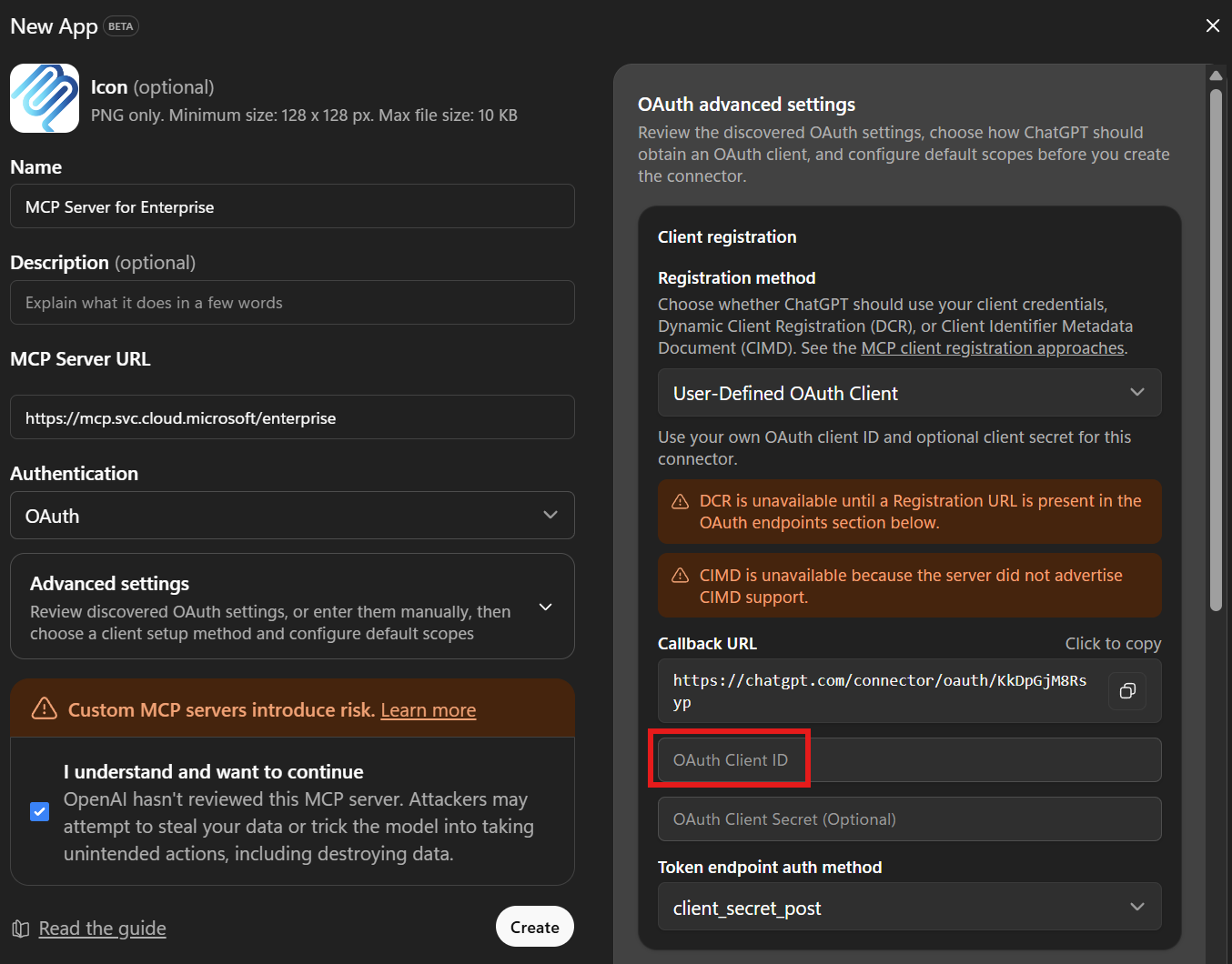
Put the App ID of the Registered app in the red box.
Claude
Go to Customize, Connectors, click "+", Add Custom Connector, and fill the dialog:
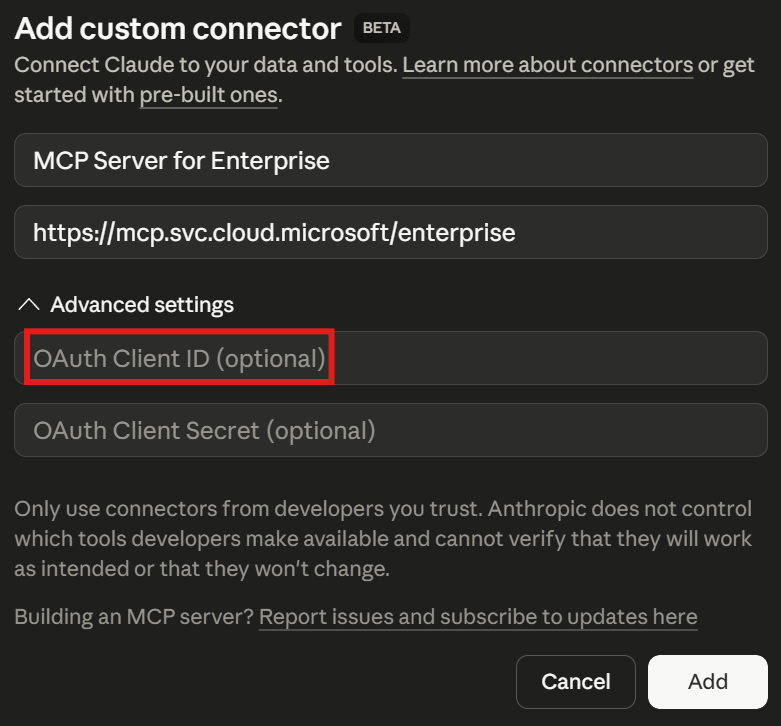
Put the App ID of the Registered app in the red box.
Visual Studio Code and GitHub Copilot CLI
By default, Visual Studio Code and GitHub Copilot CLI use the same Visual Studio Code MCP Client app Id. Both can also use a custom client Id.
Prerequisites
These steps provision the Visual Studio Code MCP Client application in your tenant and grant it the MCP permissions.
They're required when either client uses the default application Id. Skip them when using a custom client app instead.
Install Microsoft.Entra.Beta PowerShell module (version 1.0.13 or later, requires PowerShell 7):
Install-Module Microsoft.Entra.Beta -Force -AllowClobberConnect Microsoft Entra ID to your tenant:
Connect-Entra -Scopes 'Application.ReadWrite.All', 'DelegatedPermissionGrant.ReadWrite.All'Grant only the MCP scopes your scenarios require to the Visual Studio Code MCP Client app (also used by GitHub Copilot CLI with the default application Id). This example grants user read access:
Grant-EntraBetaMCPServerPermission -ApplicationName VisualStudioCode -Scopes 'MCP.User.Read.All'
Without -Scopes, the cmdlet grants all published scopes. Specifying -Scopes adds to existing grants; revoke unwanted scopes if you previously granted broader access.
Learn more about Grant-EntraBetaMCPServerPermission. For detailed installation help, see the installation instructions.
Microsoft.Entra.Beta is a setup dependency, not a runtime dependency. For a custom client, you can provision the server through Graph Explorer above and manage consent in the Entra admin center.
To avoid module conflicts without changing your installed modules, open a new PowerShell 7 session and save the module and its dependencies to a temporary directory:
$modulePath = Join-Path ([System.IO.Path]::GetTempPath()) ([System.IO.Path]::GetRandomFileName())
New-Item -ItemType Directory -Path $modulePath | Out-Null
$modulePath
$env:PSModulePath = $modulePath + [System.IO.Path]::PathSeparator + (Join-Path $PSHOME 'Modules')
Save-Module -Name Microsoft.Entra.Beta -Path $modulePath
Import-Module Microsoft.Entra.Beta
Run the connection and grant commands above in that session. Close the session when finished and delete the temporary directory shown by $modulePath.
If the Microsoft Graph PowerShell SDK modules conflict with Microsoft.Entra.Beta, run the following and retry from step 1:
Install-Module Uninstall-Graph
Uninstall-Graph -All
Visual Studio Code
Option 1. Default (uses the Visual Studio Code app Id)
- Complete the Prerequisites above.
- Click Install Microsoft MCP Server for Enterprise to launch the MCP install page.
- Click the Install button in VS Code and sign in with your account from the tenant above.
- If Visual Studio Code displays the error
Error getting token from server metadata: Error: Cannot force new registration for a non-dynamic authentication provider., change"microsoft-authentication.implementation"from"msal"to"msal-no-broker"in your Settings:
Option 2. Custom MCP Client app Id
Register a custom MCP Client app and grant the required
MCP.*scopes. Sethttp://localhostas the redirect URI under Mobile and desktop applications. VS Code can use a dynamic port, which Entra ignores when matching localhost redirect URIs.Add the server to your VS Code
mcp.json, replacing the client ID:{ "servers": { "mcp-enterprise": { "type": "http", "url": "https://mcp.svc.cloud.microsoft/enterprise", "oauth": { "clientId": "<REGISTERED_APP_CLIENT_ID>" } } } }Start the server and sign in with an account from the provisioned tenant.
GitHub Copilot CLI
GitHub Copilot CLI can connect using either the default Visual Studio Code MCP Client app Id or a custom MCP Client app Id you register in your tenant.
Option 1. Default (uses the Visual Studio Code app Id)
Complete the Prerequisites above.
Add the MCP server to Copilot CLI. You can do this interactively with
/mcp add:/mcp add
Option 2. Custom MCP Client app Id
Register your own MCP Client application in your tenant and grant it the required
MCP.*scopes (see Authorization and permissions).Set
http://127.0.0.1:51001as Redirect URI for "Mobile and desktop applications".Specify your app Id via
oauthClientIdandoauthPublicClienttotruein~/.copilot/mcp-config.json:"mcp-enterprise": { "type": "http", "url": "https://mcp.svc.cloud.microsoft/enterprise", "headers": {}, "tools": [ "*" ], "oauthClientId": "<REGISTERED_APP_CLIENT_ID>", "oauthPublicClient": true }
In either case, sign in with your account from the provisioned tenant when prompted.
For more information, see the GitHub Copilot CLI documentation.
Authorization and permissions
The MCP Server for Enterprise supports delegated permissions only. Access requires both the MCP Client's granted scopes and the signed-in user's permissions and roles. MCP consent doesn't grant access beyond that user's authorization.
Grant only the MCP.* scopes your use cases need. You can use a read-only configuration without granting write scopes. Add scopes as your needs change; consult the Microsoft Graph permissions reference for the corresponding Graph permissions.
Administrators can use per-user consent grants to limit access to selected users.
Use the following cmdlet to list the permissions provided by the MCP Server for Enterprise:
(Get-EntraBetaServicePrincipal -Property "PublishedPermissionScopes" -Filter "AppId eq 'e8c77dc2-69b3-43f4-bc51-3213c9d915b4'").PublishedPermissionScopes | Where-Object { $_.IsEnabled -eq $true -and $_.AdditionalProperties["isPrivate"] -ne $true } | Select-Object Value, AdminConsentDisplayName | Sort-Object
You can use your own app registration as the MCP Client. Use these cmdlets to manage its granted scopes:
Grant-EntraBetaMCPServerPermission -ApplicationId "<MCP_Client_Application_Id>" -Scopes "<Scope1>", "<Scope2>", "<...>"
Revoke-EntraBetaMCPServerPermission -ApplicationId "<MCP_Client_Application_Id>" -Scopes "<Scope1>", "<Scope2>", "<...>"
Learn more: Manage MCP Server for Enterprise permissions
Advantages
- Remote MCP Server: easy to configure and standards-compliant, deployed in the same regions as Microsoft Graph.
- IT Admins in control: MCP clients need specific MCP.* scopes (mirroring Microsoft Graph scopes) to access your tenant data.
- Simplified architecture: 3 tools cover the workflow instead of one tool per API operation.
- High-quality query generation: generates accurate queries from over 500 real-world examples via RAG (Retrieval-Augmented Generation).
- Full auditability: all MCP operations run under the same App ID with a specific user agent.
- No extra license required: your existing Microsoft Entra and Microsoft Graph API licenses apply.
Availability, Roadmap and feedback
The Microsoft MCP Server for Enterprise is available only in the public cloud (global service), with support for sovereign clouds planned for a future release.
We will continue expanding beyond the current Microsoft Entra scenarios, but M365 APIs will be covered by Agent 365.
Support for write operations is planned for a future release.
Please share suggestions or issues through our feedback form: Submit feedback.
Licensing and usage
- The MCP Server for Enterprise doesn't require extra cost or separate license.
- You need the right licenses for the data you access (for example, Microsoft Entra ID Governance or Microsoft Entra ID P2 license for Privileged Identity Management (PIM) data).
- Any request to this MCP server is limited to 100 requests per minute per user. Requests to
microsoft_graph_getare also subject to Microsoft Graph Throttling limits.
Logs
To monitor usage, enable Microsoft Graph activity logs in your tenant to record the Graph API calls made through the MCP server.
Filter for MCP Server usage:
Use the Application (Client ID) of the Microsoft MCP Server for Enterprise: e8c77dc2-69b3-43f4-bc51-3213c9d915b4.
The following Kusto query retrieves these logs:
MicrosoftGraphActivityLogs
| where TimeGenerated >= ago(30d)
| where AppId == "e8c77dc2-69b3-43f4-bc51-3213c9d915b4"
| project RequestId, ClientRequestId, TimeGenerated, UserId, RequestMethod, RequestUri, Scopes, ResponseStatusCode
Use Graph's RequestId and ClientRequestId with the timestamp, user, and request URI to trace API calls. Scopes lists permissions in the Graph access token, not the specific permission used to authorize each operation.
Support and reference
For documentation, troubleshooting, and feedback, refer to the official Microsoft Learn documentation and support channels.
Security and compliance
All operations respect Microsoft Graph permissions and security policies. The MCP server uses standard Microsoft Graph telemetry and doesn't log request payloads. Review your AI client's data-handling and retention policies for prompts and returned data. Ensure compliance with your organizational, regulatory, and contractual requirements when integrating the MCP Server.
No warranty/limitation of liability
This software is provided "as is" without warranties or conditions of any kind, either express or implied. Microsoft isn't liable for any damages that result from use, misuse, or misconfiguration of this software.
Installing Microsoft Enterprise
This server has no published package — it is built from source. Open the repository and follow its README.
▸ github.com/microsoft/enterprisemcpFAQ
Is Microsoft Enterprise MCP free?
Yes, Microsoft Enterprise MCP is free — one-click install via Unyly at no cost.
Does Microsoft Enterprise need an API key?
No, Microsoft Enterprise runs without API keys or environment variables.
Is Microsoft Enterprise hosted or self-hosted?
Self-hosted: the server runs locally on your machine via the install command above.
How do I install Microsoft Enterprise in Claude Desktop, Claude Code or Cursor?
Open Microsoft Enterprise on unyly.org, pick your client tab (Claude Desktop, Claude Code, Cursor) and press Install — the config is generated automatically, no JSON editing.
Related MCPs
GitHub
PRs, issues, code search, CI status
 by GitHub
Filesystem
Secure file operations with configurable access controls.
Memory
Knowledge graph-based persistent memory system.

Unyly Deploy
Deploy sites and MCP servers to Unyly straight from your AI agent
 by Unyly
Amap Maps Mcp Server
MCP server for using the AMap Maps API
 by duxiaohui
PayMCP
Lightweight payments layer for MCP servers: turn tools into paid endpoints with a two-line decorator. [PyPI](https://pypi.org/project/paymcp/) · [npm](https://w
 by blustAI
Server For Power BI
Enables exploring Microsoft Fabric / Power BI workspaces and semantic models, and executing ad-hoc DAX queries.
 by Mitsubishi-Fuso
Template MCP Server
A CLI tool to create a new Model Context Protocol server project with TypeScript support, dual transport options, and an extensible structure
 by mcpdotdirect
Supabase
Database, auth and storage
 by Supabase
Everything
Reference / test server with prompts, resources, and tools.
Compare Microsoft Enterprise with
Not sure what to pick?
Find your stack in 60 seconds
Author?
Embed badge for your README
Browse similar
All development MCPs