
VSCodeMCP
FreeNot checkedVS Code extension with Ace Data Cloud MCP servers for music, image, video, search, and developer workflows.

About
VS Code extension with Ace Data Cloud MCP servers for music, image, video, search, and developer workflows.
README
One VS Code extension for AI chat, images, video, music, search, web extraction, and account management. Choose from 26 hosted MCP services and use them in VS Code Chat without installing Python or running local servers.
简体中文教程 · Current models and pricing
First image: GPT Image in VS Code
This example uses one low-quality gpt-image-2 request, then queries the same task ID until its image is ready. Screenshots come from the real English VS Code 1.141 interface. Your model, task ID, image URL, and Credits charge will differ.
1. Install the Marketplace extension
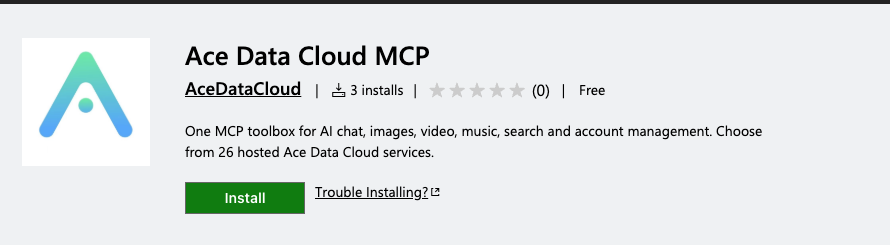
Open Ace Data Cloud MCP in the official VS Code Marketplace. Confirm the publisher is AceDataCloud / acedatacloud, choose Install, and reload VS Code if asked. VS Code 1.101 or newer and an Agent chat model with tool calling are required.
2. Get the right API key
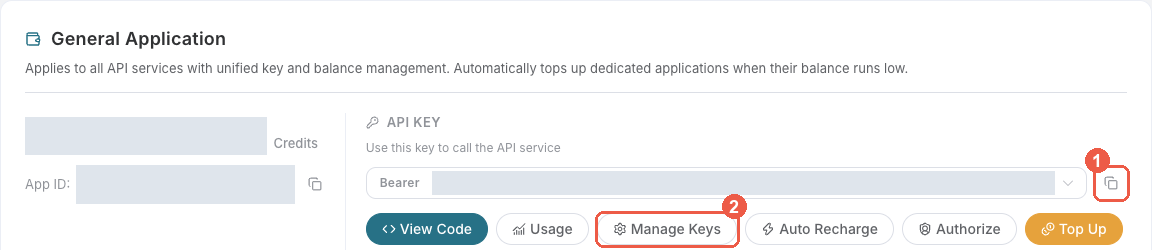
New account? Register and sign in first. If no General application is shown, choose Initialize General Application. When creating a separate key, name it for VS Code and review expiration, usage limits and API restrictions before saving.
- Sign in to Ace Data Cloud → Applications.
- Open General application. Copy its API key, or choose Manage Keys → Create to make a separate VS Code key. Check OpenAI image-generation access, current price, and balance before submitting a task.
- If Allowed APIs is enabled, permit both generation and task lookup:
/openai/images/generationsand/openai/tasks. Copy only the token string, withoutBeareror quotation marks. Aplatform-...management token is for the optional account server, not this image tool.
3. Choose GPT Image tools and authorize
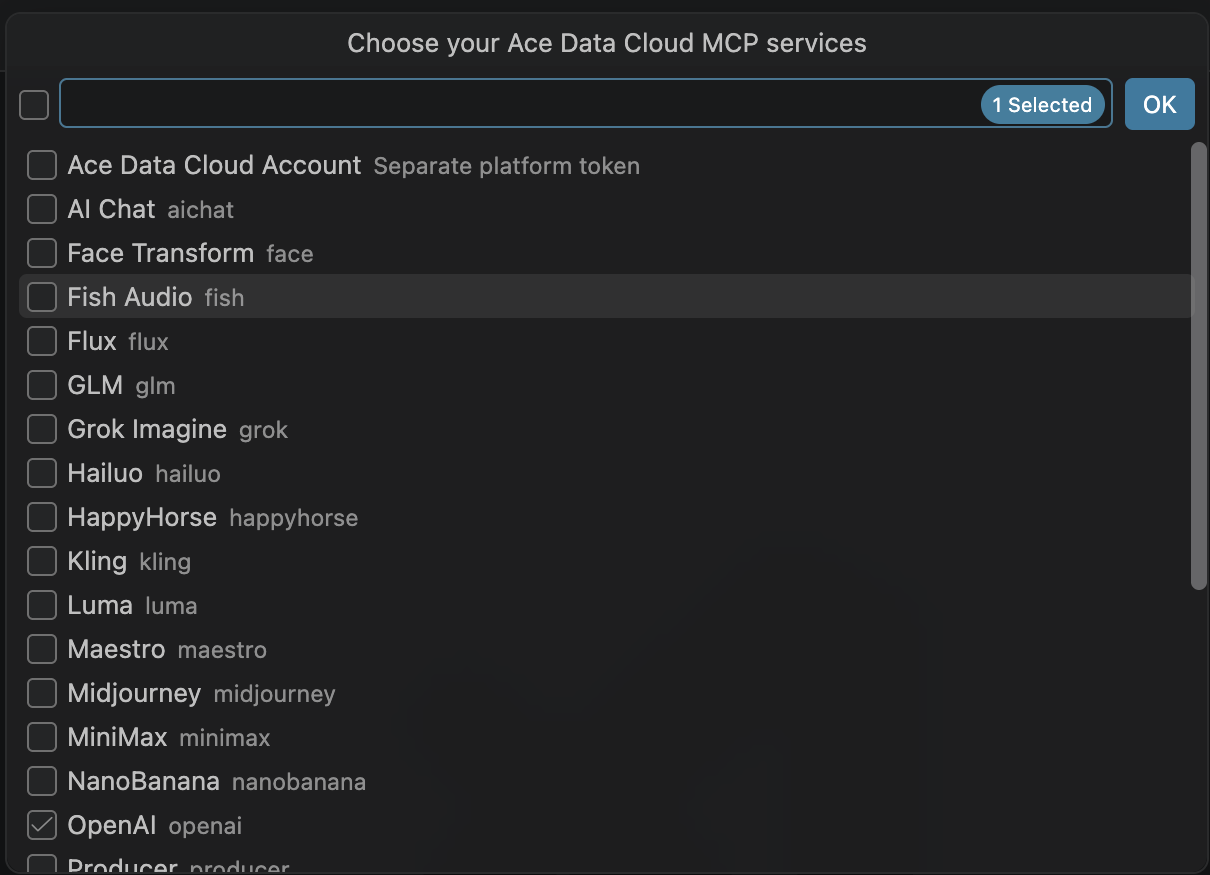
In the Command Palette, run Ace Data Cloud: Choose MCP Services. Select OpenAI for GPT Image; the OpenAI server supplies openai_generate_image and openai_get_task. For this first run, deselect other services. The Ace Data Cloud Account entry uses a different platform token and is not needed here. Choose OK.
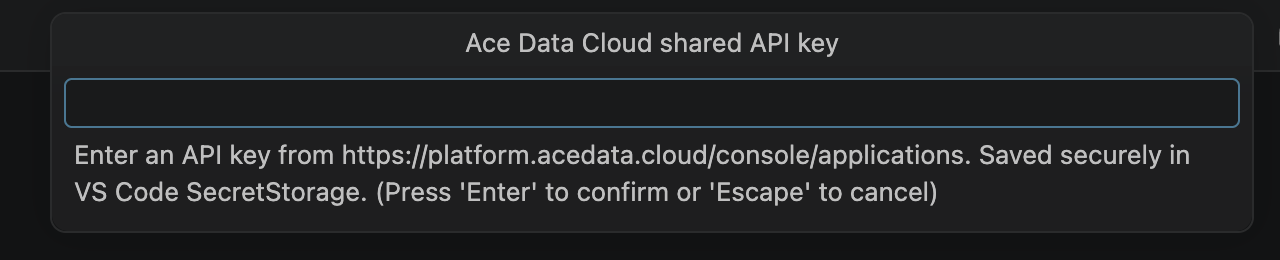
Run Ace Data Cloud: Set Shared API Key and paste the application API key. The key is saved in VS Code SecretStorage, not in your workspace. Use Set Service API Key instead when OpenAI should have its own restricted key. If VS Code asks you to trust the MCP server, verify that it connects to https://openai.mcp.acedata.cloud/mcp before accepting.
4. Enable only the two tools needed
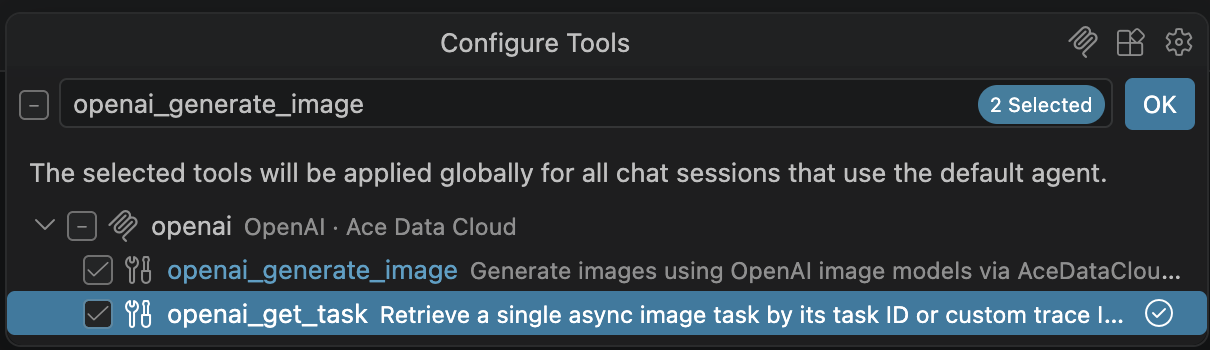
Open Chat → Agent and choose a model that supports tool calling. The separate Ace Data Cloud Chat Models extension can provide one; another compatible Chat model works too. In Chat, select Configure Tools. Under OpenAI · Ace Data Cloud, choose Update Tools if its list is empty, then enable openai_generate_image and openai_get_task. You can disable unrelated tools for this example.
5. Submit one generation
Paste this into Chat. You can also copy the no-key prompt file into your workspace's .github/prompts/ folder and run it from Chat.
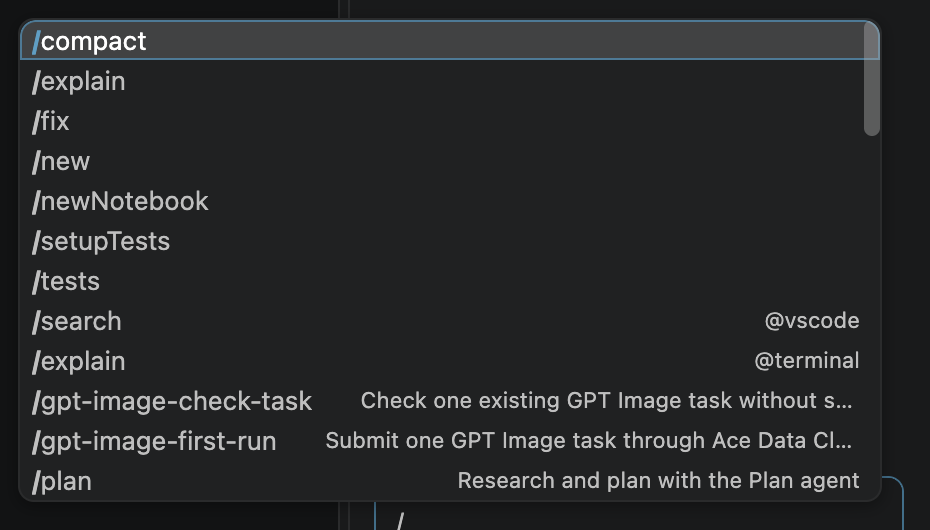
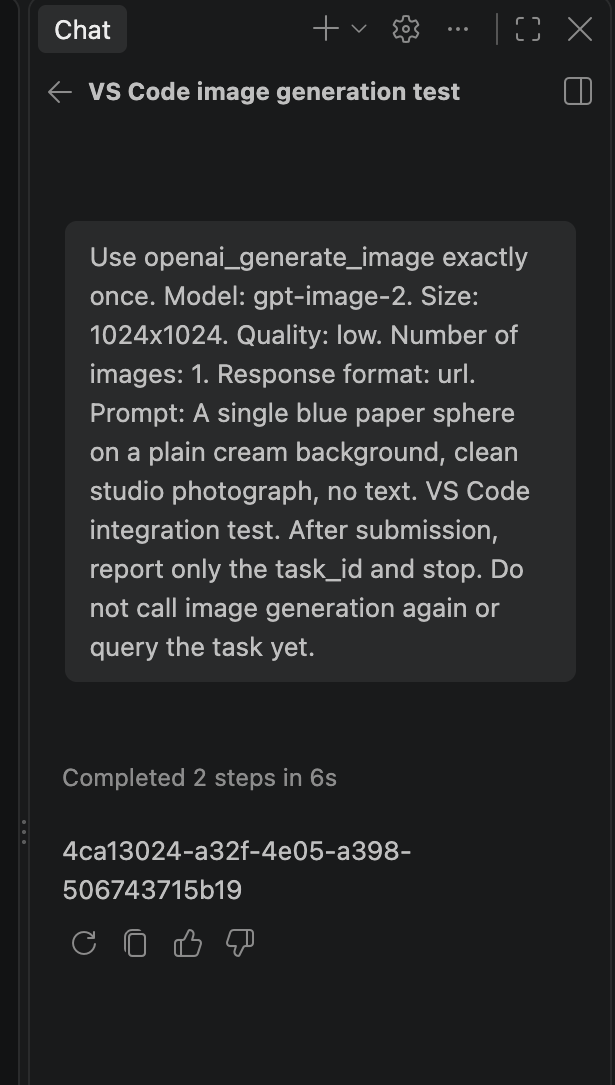
Use openai_generate_image exactly once. Model: gpt-image-2. Size: 1024x1024. Quality: low. Number of images: 1. Response format: url. Prompt: A single blue paper sphere on a plain cream background, clean studio photograph, no text. VS Code integration test. After submission, report only the task_id and stop. Do not call image generation again or query the task yet.
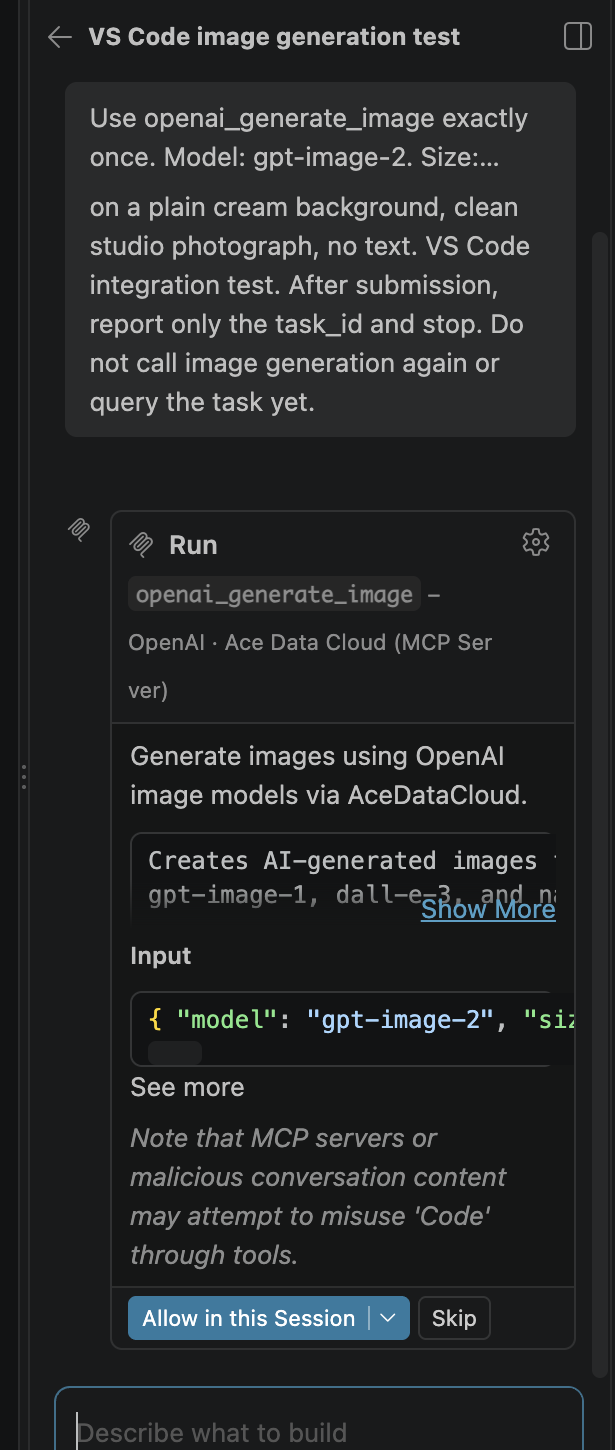
Before clicking Allow in this Session, inspect the tool input: model=gpt-image-2, size=1024x1024, quality=low, n=1, and response_format=url. The accepted request returns a task_id; it does not mean the image is finished. Save that ID. Do not rerun the generation to check progress.
6. Query that task until it finishes
In Configure Tools, disable openai_generate_image and leave only openai_get_task enabled. Replace TASK_ID in the no-key query prompt with the ID you just received, or paste this into Chat:
Use openai_get_task only for task ID TASK_ID. Do not call openai_generate_image. Tell me whether it has finished and give one clickable link to the image result if available.
If there is no finished_at or result URL yet, wait and query the same ID again. The task is complete when the response has finished_at and response.success=true. A green Chat turn or an accepted task alone is not completion.
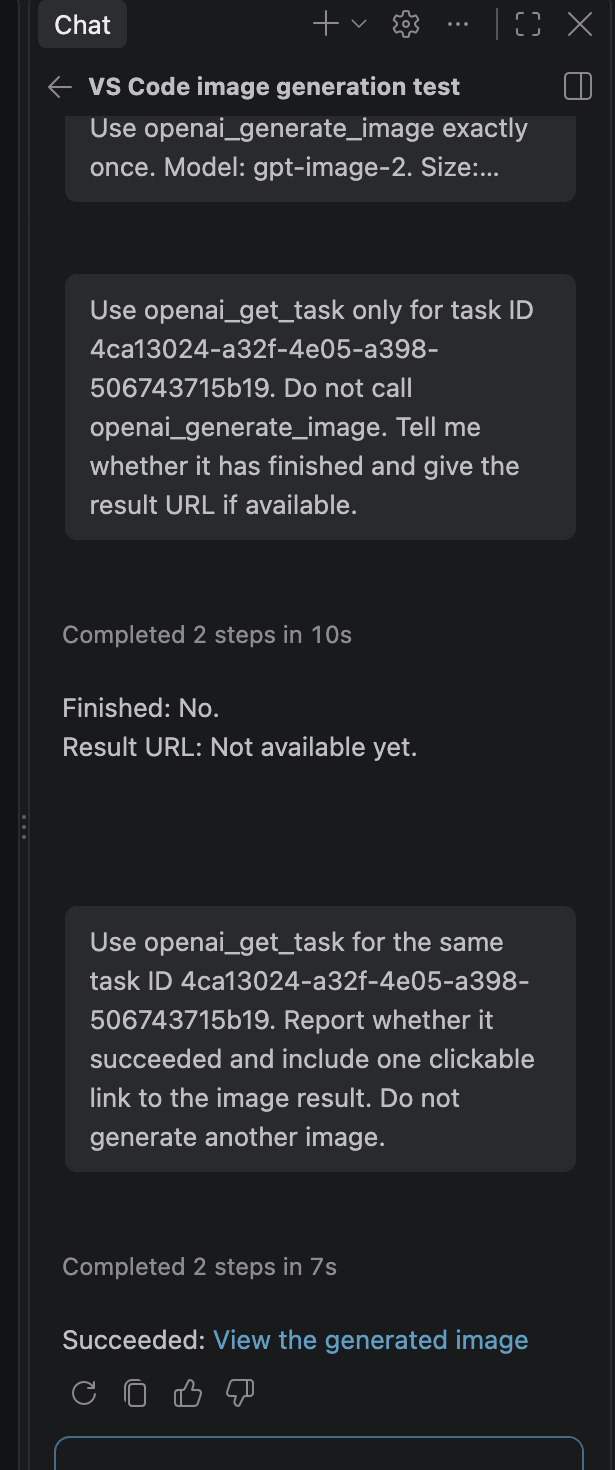
7. Open the image and check billing
Open View the generated image. In our verified run, the returned link served a 1024 × 1024 PNG with HTTP 200. Open Ace Data Cloud Usage and match the single generation task ID to its Credits charge; task queries must not create another image charge. Prices and package conversion rates change, so check the current display rather than copying this example's amount.
| What you see | What to do |
|---|---|
| 401 or 403 | Recheck the application key, service access, expiry, Allowed APIs, and balance. Do not use a platform management token. |
| Invalid parameters / 400 | Copy the exact model, quality, size, and count above. |
| Pending or no URL | Query the same task ID again. Never resubmit generation just to poll. |
| 429 | Wait and reduce concurrency; do not enable automatic paid retries. |
| 5xx, timeout, or failed task | Inspect the original task and usage history before deciding whether to submit another paid request. Share task/trace ID with support, never your key. |
Services
The same extension exposes the services below. GPT Image is under OpenAI, and Google Search is under Google Search (serp internally). Each service has its own tools; select it, check its current API permissions and price, and review write confirmations before running it. A service-specific API key can be saved with Set Service API Key. A second copy of the same MCP from an individual extension should be disabled to avoid duplicate tool entries.
| Service | Credential |
|---|---|
| Ace Data Cloud Account | Platform token |
| AI Chat | API key |
| Face Transform | API key |
| Fish Audio | API key |
| Flux | API key |
| GLM | API key |
| Grok Imagine | API key |
| Hailuo | API key |
| HappyHorse | API key |
| Kling | API key |
| Luma | API key |
| Maestro | API key |
| Midjourney | API key |
| MiniMax | API key |
| NanoBanana | API key |
| OpenAI | API key |
| Producer | API key |
| Qwen Image | API key |
| Seedance | API key |
| Seedream | API key |
| Google Search | API key |
| Short URL | API key |
| Suno | API key |
| Veo | API key |
| Wan | API key |
| Web Extractor | API key |
Account management is optional and requires its own platform token from Platform tokens. Run Ace Data Cloud: Set Account Platform Token to save it. API keys are never sent to the account-management server, and platform tokens are never sent to API-service servers.
Credentials and configuration
Credentials are stored in VS Code SecretStorage, not in settings.json.
The extension registers hosted MCP definitions; VS Code controls when each selected server starts. Inputs and the saved API key are sent to that server. API requests use your account and current service pricing. Prompt files contain no keys.
Use Set Service API Key when one service needs a different key. Saved service
keys take precedence over the shared key. Environment variables
ACEDATACLOUD_API_TOKEN and ACEDATACLOUD_PLATFORM_TOKEN are used only when the
corresponding saved credential is absent.
Clear Saved Credentials removes keys saved by this extension. It does not change environment variables. To stop exposing a service, deselect it with Choose MCP Services. To stop all services, select none.
You can also set acedatacloud.bundle.services in VS Code settings:
{
  "acedatacloud.bundle.services": ["suno", "kling", "qwen-image", "serp"]
}
The new extension ID is acedatacloud.mcp-toolbox; the deleted March bundle
ID cannot be reused. Install this extension explicitly, save your key using the command above
and remove the old acedatacloud.apiToken plaintext setting. It is no longer read.
The retired Sora service is no longer included. Individual Ace Data Cloud service
extensions remain available; disable duplicate entries if you also use this bundle.
Development
npm ci
npm test
npm run check
npm run package
The source of truth is MCPs/vscode-bundle. This repository receives reviewed source changes through the MCPs sync pipeline; do not edit its generated service list or source independently.
In MCPs, opt verified services into scripts/mcp_catalog.json using
vscode_bundle. Endpoints and credential kinds come from each service's
server.json. Run python3 scripts/build_vscode_bundle.py after catalog changes;
CI checks the generated list, package settings and README together. A retired
service is automatically omitted. Publish runs tests, packages a VSIX and reads
back the public Marketplace version.
API documentation · MCP server source · Issues
MIT licensed.
Installing VSCodeMCP
This server has no published package — it is built from source. Open the repository and follow its README.
▸ github.com/AceDataCloud/VSCodeMCPFAQ
Is VSCodeMCP MCP free?
Yes, VSCodeMCP MCP is free — one-click install via Unyly at no cost.
Does VSCodeMCP need an API key?
No, VSCodeMCP runs without API keys or environment variables.
Is VSCodeMCP hosted or self-hosted?
Self-hosted: the server runs locally on your machine via the install command above.
How do I install VSCodeMCP in Claude Desktop, Claude Code or Cursor?
Open VSCodeMCP on unyly.org, pick your client tab (Claude Desktop, Claude Code, Cursor) and press Install — the config is generated automatically, no JSON editing.
Related MCPs
GitHub
PRs, issues, code search, CI status
 by GitHub
Filesystem
Secure file operations with configurable access controls.
Memory
Knowledge graph-based persistent memory system.

Unyly Deploy
Deploy sites and MCP servers to Unyly straight from your AI agent
 by Unyly
Amap Maps Mcp Server
MCP server for using the AMap Maps API
 by duxiaohui
PayMCP
Lightweight payments layer for MCP servers: turn tools into paid endpoints with a two-line decorator. [PyPI](https://pypi.org/project/paymcp/) · [npm](https://w
 by blustAI
Server For Power BI
Enables exploring Microsoft Fabric / Power BI workspaces and semantic models, and executing ad-hoc DAX queries.
 by Mitsubishi-Fuso
Template MCP Server
A CLI tool to create a new Model Context Protocol server project with TypeScript support, dual transport options, and an extensible structure
 by mcpdotdirect
Supabase
Database, auth and storage
 by Supabase
Everything
Reference / test server with prompts, resources, and tools.
Compare VSCodeMCP with
Not sure what to pick?
Find your stack in 60 seconds
Author?
Embed badge for your README
Browse similar
All development MCPs